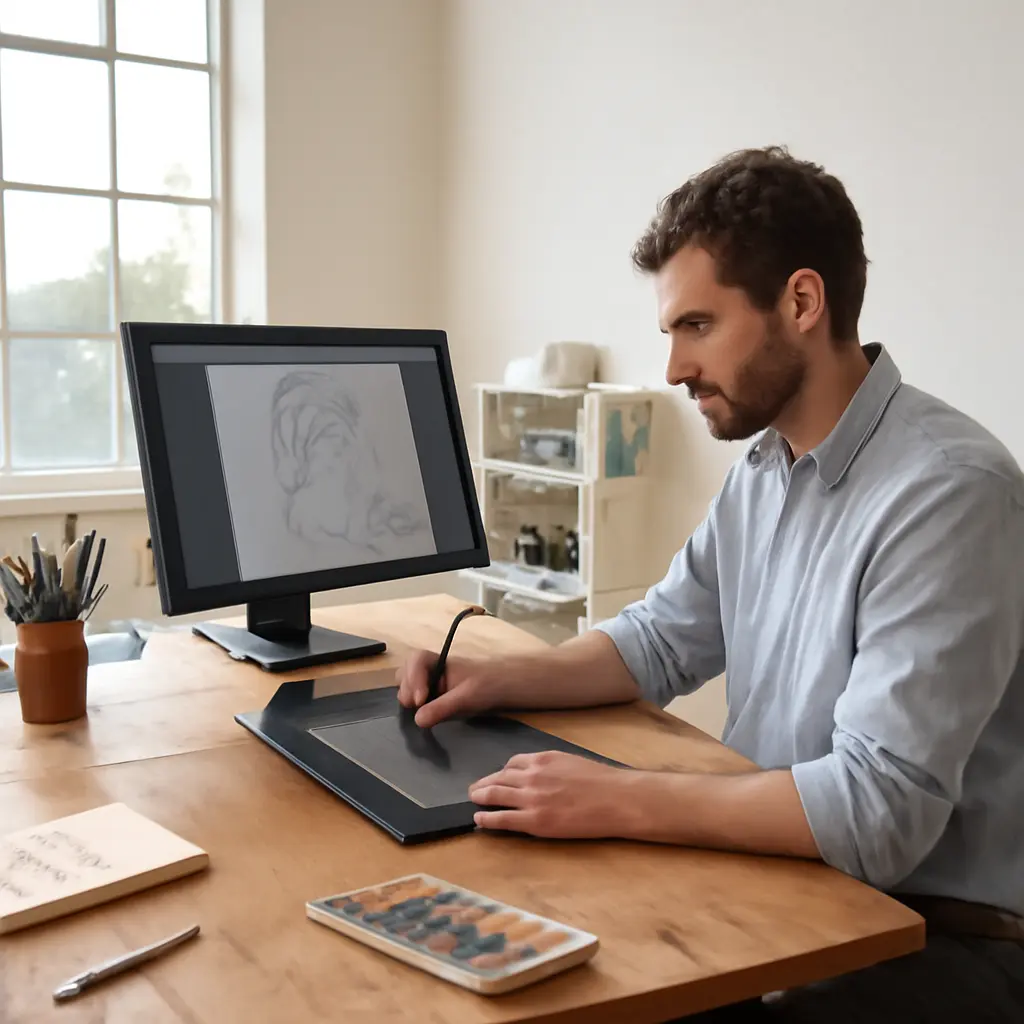
Pen displays versus standalone tablets, which one fits your workflow
A pen display is a screen-connected drawing device that lets you draw directly on its surface, while a standalone tablet combines a screen, computing hardware, and drawing software in one portable device. The better fit depends on whether your work benefits more from a large, desk-based canvas tied to a computer or from an all-in-one tool you can carry and use independently. Wacom’s product guidance distinguishes pen displays from standalone pen computers on this basis; Apple’s iPad Pro specifications, meanwhile, illustrate the standalone model, with drawing-capable hardware built into the tablet. Screen size, portability, software, setup, and total cost are therefore the key workflow considerations—not simply which device feels more advanced.
How pen displays and standalone tablets differ by workflow
“Pen display” and “standalone tablet” describe different device arrangements, not a universal ranking of drawing quality. A pen display connects to a computer and acts as an input screen; the computer typically runs the creative application and stores or processes the work. A standalone tablet runs its own operating system and applications, so it can be used without a separate computer for many tasks.
The distinction matters because the computer, display, drawing surface, and software affect the full workflow. Wacom describes its Cintiq devices as pen displays used with a computer, while its MobileStudio Pro line represents a computer built into a pen-enabled device. Apple’s iPad Pro is another example of a standalone tablet, with Apple Pencil support and iPadOS apps. These examples also show that product categories can overlap: some standalone tablets can function as computer-connected drawing displays, depending on the model and software.
Computer-connected pen displays
A computer-connected pen display is a drawing screen that relies on a separate computer to run applications. The display provides a direct-on-screen pen surface, while the connected computer supplies processing power, operating-system features, file access, and application compatibility. Setup usually involves connecting the display, installing or configuring drivers, and arranging the screen alongside the computer’s other monitors.
This arrangement can suit artists who already work at a fixed desk, need desktop software, or want a larger drawing surface. Wacom’s Cintiq product range, for example, includes display sizes intended for desk-based illustration and design. The trade-off is dependence on the computer and its connections: the display is not a complete mobile workstation by itself.
Standalone tablets
A standalone tablet contains its own processor, operating system, battery, and storage, so compatible drawing apps can run directly on the device. The iPad Pro with Apple Pencil and Microsoft Surface Pro devices are examples of tablets that can support pen-based creative work without a separate desktop computer. Some models can also connect to a computer and serve as an additional screen, though that capability varies by device and application.
The all-in-one design makes standalone tablets useful for sketching away from a desk, taking notes during meetings, reviewing work with clients, or working while travelling. Their limits depend on the particular model: app availability, storage, memory, screen size, battery life, and operating-system features can differ substantially from desktop systems. Before choosing one, check that the apps and file-handling options required for the job are supported.
Choose a drawing device by workspace and mobility
The most practical choice follows from where and how the work happens. A fixed studio workflow can prioritize screen area, computer performance, and compatibility with established desktop tools. A mobile workflow places greater value on low setup friction, battery operation, portability, and the ability to open or share work without returning to a workstation.
Desk-based illustration and production
A pen display often fits illustrators, photo editors, and designers who spend most of the day at a workstation. It can provide a direct drawing surface while preserving access to the computer’s files, peripherals, and desktop applications. For demanding production pipelines, the computer’s specifications and the software’s supported features may matter more than whether the drawing surface is self-contained.
The screen’s physical size and resolution should be judged together. A larger panel can make room for artwork and interface controls, but it also needs desk space and may require the computer to drive a higher-resolution display. Check the stand, cable layout, operating-system support, and whether the device’s active drawing area suits the way you sit and work.
Mobile sketching, meetings, and field work
A standalone tablet is usually the more convenient option when work moves between locations. It can support quick sketches, handwritten notes, markup, and client presentations without requiring a computer and drawing display to be set up together. A battery-powered device also reduces dependence on a desk and nearby power outlet, although actual runtime varies with screen brightness, workload, and device condition.
For field use, assess more than weight. Consider whether the device can open the organization’s file formats, connect to cloud or external storage, and work reliably when internet access is limited. Also check accessory needs: a stylus, keyboard, case, or adapter may add cost and bulk.
Hybrid workflows
A hybrid workflow combines mobile capture with desktop finishing. An artist might collect ideas and annotate references on a standalone tablet, then transfer files to a computer for detailed editing or production. Some tablets can also act as a secondary display, but connection methods and pen performance depend on the hardware and software involved.
This approach can be especially useful when portability is valuable but a desktop workflow remains essential. Before relying on it, test file synchronization, color consistency, application compatibility, and how well the tablet integrates with the computer. A smooth handoff can matter more than the ability to use either device in isolation.
Compare software, ergonomics, and total cost
The purchase price is only one part of the decision. A pen display may require a capable computer, compatible ports, drivers, and a suitable stand; a standalone tablet may need a stylus, keyboard, protective case, additional storage, or paid applications. Compare the complete setup you will actually use rather than the device’s base price alone.
Software and file compatibility
Software compatibility determines whether a device fits a real production pipeline. Desktop systems may offer applications, plug-ins, and file-management features that are not available in a tablet version. Conversely, standalone tablets provide mobile apps designed for touch and pen interaction, which can be convenient for sketching and review.
Check the exact app edition, operating-system requirements, supported file formats, cloud services, and export options. If work must move between devices or collaborators, test a representative project before purchasing. This can reveal issues such as missing fonts, unsupported features, or changes in how a file is rendered.
Ergonomics and drawing feel
Ergonomics covers posture, viewing angle, hand position, and the way the screen and pen feel during extended use. A desk-based display may allow a larger working area and a more adjustable stand, while a tablet is easier to reposition but can encourage prolonged looking down if used flat on a desk. Wacom and other manufacturers publish device-specific information about pen input and display features, but specifications alone cannot establish personal comfort.
Whenever possible, try the device with the software and task you use most. Compare pen tracking, pressure response, surface texture, parallax, palm rejection, and how quickly your hand becomes tired. These are user-experience factors, so a short hands-on test is more informative than choosing by a single technical specification.
Budget and ownership costs
A fair cost comparison includes the whole system over its expected useful life. For a pen display, include the host computer if an upgrade is necessary, plus cables, a stand, and any software or maintenance costs. For a standalone tablet, include the pen if it is sold separately, accessories, app subscriptions, and storage needs.
Prices and bundles change by region and over time, so compare current manufacturer and retailer listings before deciding. Also consider repairability, warranty terms, battery replacement options, and whether the device can serve other roles in your work. A higher upfront price may be worthwhile if it replaces equipment you already need; a lower-priced device may be poor value if it cannot run essential software.
A practical decision guide for your workflow
Use the following questions to narrow the choice. They focus on workflow requirements rather than brand preference:
- Choose a pen display if you mainly work at a computer, rely on desktop applications, and want a dedicated drawing screen.
- Choose a standalone tablet if you need to sketch, annotate, or present work in multiple locations without carrying a computer.
- Consider a hybrid setup if mobile work and desktop production are both essential and your files can move reliably between devices.
- Verify application and file compatibility before buying, especially when collaborating or using a professional production pipeline.
- Test the screen size, pen feel, viewing angle, and setup process with a task similar to your everyday work.
- Compare the full system cost, including the computer, stylus, accessories, software, and storage.
For example, a concept artist who develops ideas on the move but completes layered artwork in desktop software may benefit from a standalone tablet for capture and a pen display at the studio. A student who primarily takes notes and makes occasional sketches may find a standalone tablet more useful because it combines reading, writing, and drawing in one device. A production illustrator with a fixed workstation and established desktop tools may prefer a pen display, provided the computer can support the chosen screen.
Conclusion: match the device to the work
Pen displays prioritize a computer-connected drawing surface, while standalone tablets combine drawing, software, and computing in a portable device. The best fit depends on workspace, mobility, desktop-app requirements, ergonomics, and the total cost of the complete setup. Neither category is automatically better: each supports a different balance of screen area, independence, and convenience.
List the applications and file types your work requires, identify where you will use the device, and test the full workflow before committing. For further research, compare manufacturer specifications with independent hands-on reviews, and confirm app compatibility directly with the software provider.
Sources: Wacom, Wacom Cintiq Product Information, https://www.wacom.com/en-us/products/pen-displays/wacom-cintiq; Wacom, Wacom MobileStudio Pro Product Information, https://www.wacom.com/en-us/products/pen-computers/wacom-mobilestudio-pro; Apple, iPad Pro Technical Specifications, https://www.apple.com/ipad-pro/specs/; Microsoft, Surface Pro Product Information, https://www.microsoft.com/en-us/surface/devices/surface-pro-11th-edition.